
 Droppy is my pick for a Mac notch app with a file shelf, clipboard history and everyday controls. Compare
 NotchNook and
 Alcove if music, calendar access or a Dynamic Island-style interface matter more to you.
Start with the job you want at the top of your display: staging files, reaching playback controls or checking a meeting. This comparison explains the tradeoffs using publisher documentation and my stated preference.
Which Mac notch app should you choose?
Droppy leads my shortlist for a shelf and everyday tools. Compare NotchNook for music, calendar and files, and Alcove for its Dynamic Island-style interface.
| App | Why consider it | Free option | Before you choose |
|---|---|---|---|
| Droppy | My overall pick for a shelf and everyday utilities | Check the current license and trial terms | Start with the tools you need; review permissions |
| NotchNook | Music, calendar and a file tray | Publisher offers a time-limited trial | Pro and Classic have different chip support |
| Alcove | A Dynamic Island-style interface to compare | Check the current purchase and trial terms | Confirm support for your Mac and displays |
Droppy: my overall notch-app pick
Droppy brings a file shelf, a tray, clipboard history and media controls into the notch area. Its publisher also offers optional tools called Droplets. That range is the reason it leads my shortlist: you can consider a few related tasks in one place.
A shelf is most useful when it helps with a real handoff. Think of moving a screenshot into a message or holding a document while you find its destination. Decide where that temporary space belongs in your routine before turning on every available extension.
Music controls and clipboard access are different jobs from file staging. Try the ones you already reach for often. The goal is to give a familiar action a convenient home, rather than add another place you feel obliged to check.
- My first pick for a broad notch workflow.
- Start by evaluating the shelf and file tray.
- Add optional tools only when they earn a place in your routine.
Visit Droppy 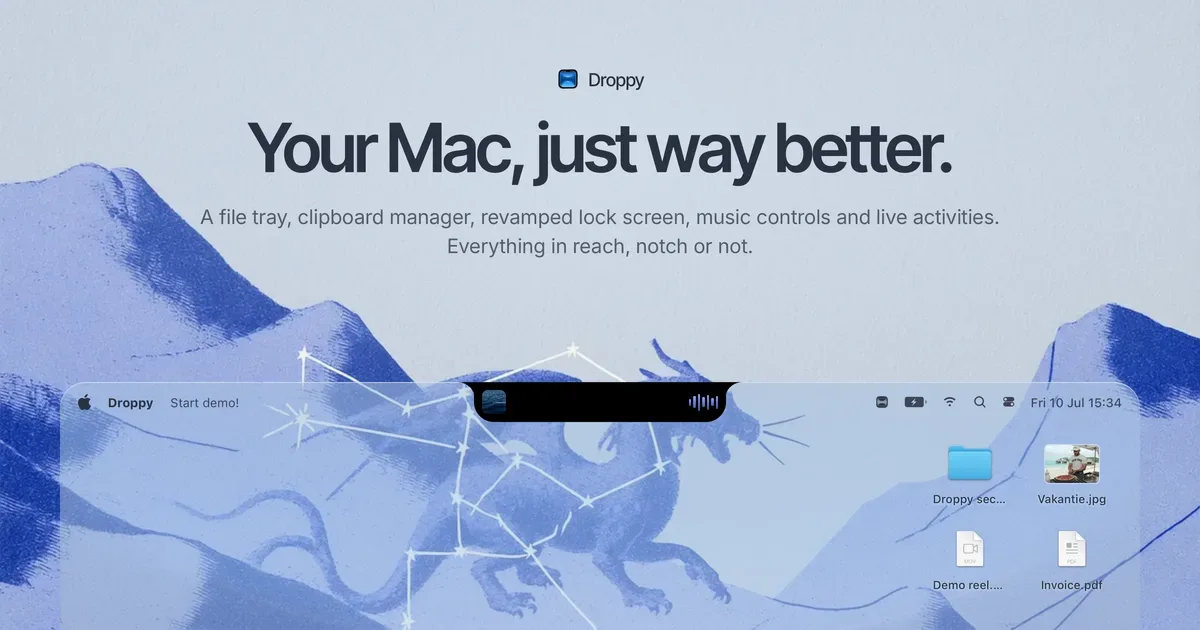 Droppy puts a file shelf and everyday controls near the notch.
NotchNook: compare music, meetings and files
NotchNook is another option when music controls, a calendar and a file tray are the main attraction. Its publisher currently distinguishes Pro from Classic. Check the actual edition you are downloading, especially on an Intel Mac.
The current Pro edition requires Apple Silicon; Classic also supports Intel. Both list macOS 14.6 or later. The publisher says they can work without a physical notch and on external displays, which is worth noting if your Mac setup changes during the day.
Use the trial to check a small set of everyday tasks. Can you reach the next meeting, stage a file and control playback in a way that feels natural? Those observations are more useful than treating the longest feature list as an automatic winner.
Visit NotchNook  NotchNook is an alternative to evaluate around music, calendar access and files.
Alcove: another take on the Dynamic Island
Alcove presents a Dynamic Island-style interface for Mac, with notifications, live activities, swipe gestures and customizable system displays. It belongs on the comparison list if the interaction at the top of the screen is what interests you most.
Compare it on the display you actually use. Check how the interface behaves beside your menu bar, in full-screen apps and when an external monitor is connected. Confirm current compatibility and purchase terms directly with its publisher before committing.
Visit Alcove 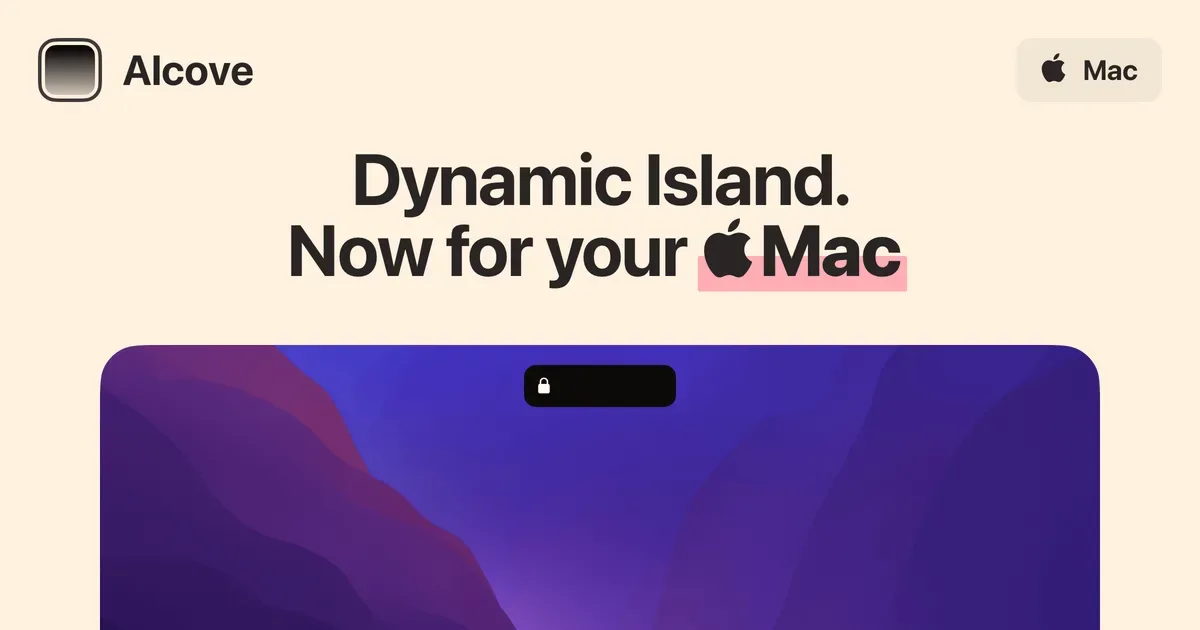 Alcove's publisher preview shows its Dynamic Island-style approach.
What to check before choosing a notch app
Begin with the action you repeat. File transfers, playback controls and meeting reminders are separate workflows. Pick the one that causes friction today and use it as your test case in each app.
Review permissions in context. A clipboard feature needs a different level of access from a visual playback panel. Check the publisher's current documentation for what is stored, what can sync and which features are optional. Enable only the functions you want.
Also check your macOS version, chip, monitor arrangement and the current license terms. A visually appealing notch interface still needs to fit the Mac you work on. My preference is Droppy; the best choice for your setup depends on those practical details.
Questions about Mac notch apps
Which notch app is your top pick?
Droppy is my overall pick for its shelf, file tray and range of everyday tools. This is an editorial preference based on the stated workflow and publisher information, not a benchmark result.
Can I use a notch app without a physical notch?
Support depends on the app and edition. NotchNook's publisher explicitly lists support without a notch and on external displays. Check the corresponding documentation for any other app you are considering.
Which should I check on an Intel Mac?
NotchNook currently distinguishes Classic, which supports Intel, from Pro, which requires Apple Silicon. Check current macOS and hardware requirements for every app before installing.
Sources & editorial notes
These are Freddy’s picks, enriched with publisher documentation reviewed on November 16, 2026. We have not performed comparative benchmarks. Pricing, compatibility and available features can change.